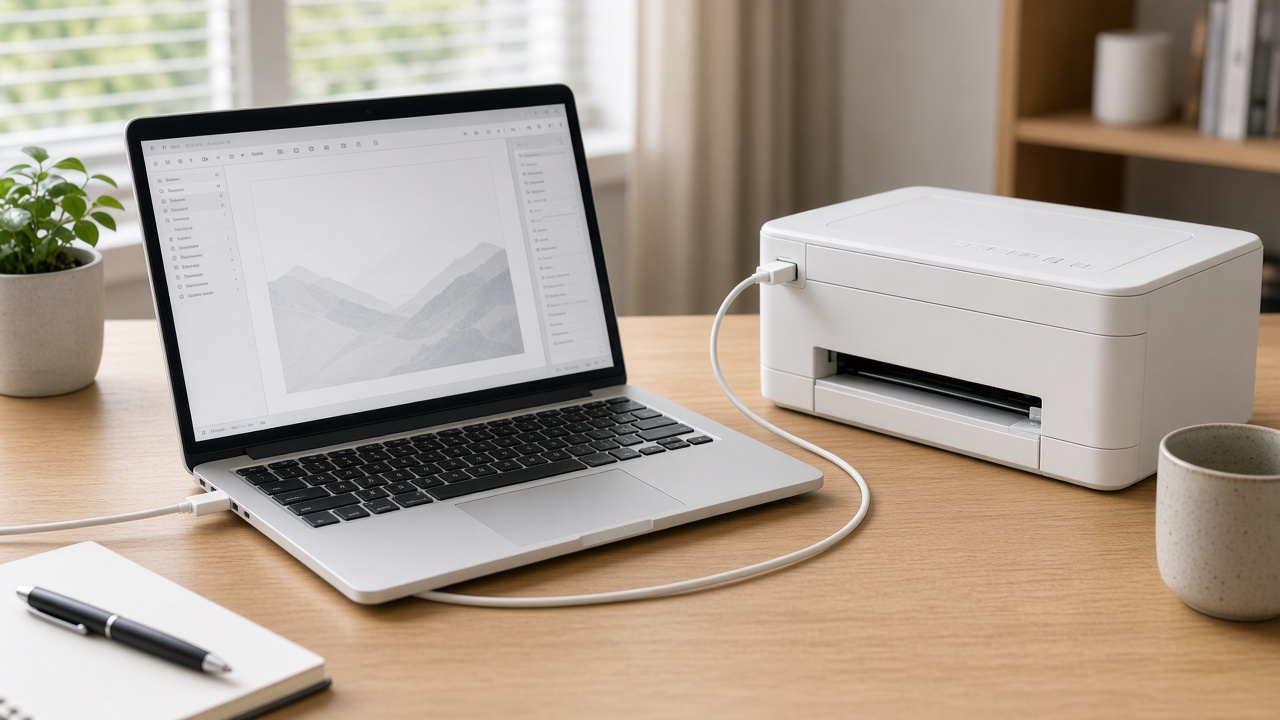
You plugged the printer in with a USB cable and Windows 11 never lists it under Printers & scanners. The power light can still be on. Power and data are different, and Windows only prints after it sees the data connection.
Prove the cable and the port
- Use a USB port on the computer, not on the monitor, keyboard, or a hub.
- Prefer a port on the back of a desktop. Front ports and hubs fail more often with printers.
- Unplug the cable at both ends and seat it again. A half-plugged USB-B plug at the printer is easy to miss.
- If you have a second cable, use it. Printer USB cables fail while the power cord is fine.
- Turn the printer on after the cable is seated, and wait a full minute before you look in Settings.
On the printer, USB and Wi-Fi are sometimes a menu choice. If the panel is set to wireless only, switch it to USB or auto, then reconnect.
See whether Windows noticed anything
Open Settings → Bluetooth & devices → Printers & scanners → Add device. Wait. If the printer appears, add it and print a test page.
If it does not appear:
- Right-click Start and open Device Manager.
- Look under Printers, Print queues, and Universal Serial Bus devices.
- Also open Other devices. An unknown device that appears when you plug the printer in and disappears when you unplug it means Windows sees hardware and lacks a driver.
- If you see a yellow mark on the printer, right-click it and choose Uninstall device. Unplug the printer, restart the PC, then plug the printer back into a different USB port.
Do not uninstall every USB root hub. Only remove the printer entry.
Install the driver after the PC can see it
When Device Manager reacts to the plug-in, install the driver for that exact model from Windows Update or the manufacturer’s support page. Then return to Printers & scanners and add the printer if Windows did not add it automatically.
A full driver pack is unnecessary when Device Manager stays completely still as you plug and unplug. That pattern is the cable, the port, or a printer that is not actually in USB mode.
What not to do
- Do not keep switching ports in a loop without watching Device Manager. You need to know if the PC sees the plug-in.
- Do not download a generic “USB printer driver” package.
- Do not factory-reset the printer until a second cable and a motherboard USB port have failed. A reset does not repair a bad cable.
If Device Manager sees the printer and the queue still will not install, call +1 888 759 4448. Remote support can clear the broken device entry and finish the Windows 11 setup.
Frequently asked questions
Why is my USB printer not showing in Windows 11?+
Windows never saw the device on that cable and port, or it saw it once and the driver failed. A dead cable, a monitor USB port, or a hub is more common than a broken printer.
Should I use the USB port on my monitor or keyboard?+
Plug the printer into a USB port on the computer itself. Ports on monitors, keyboards, and unpowered hubs often do not supply a stable connection for a printer.
The printer powers on from USB but Windows still misses it. What next?+
Power from the printer brick is separate from data. Try another data cable, another port on the PC, and look in Device Manager for an unknown device or a printer with a warning icon.
Do I need the brand CD?+
No. Install from Windows Update or the brand support site for your exact model. Skip repair tools from other download sites.
Can this be fixed remotely?+
Yes, once any USB cable is seated. Remote support can remove the broken queue, install the driver, and confirm Windows sees the printer.