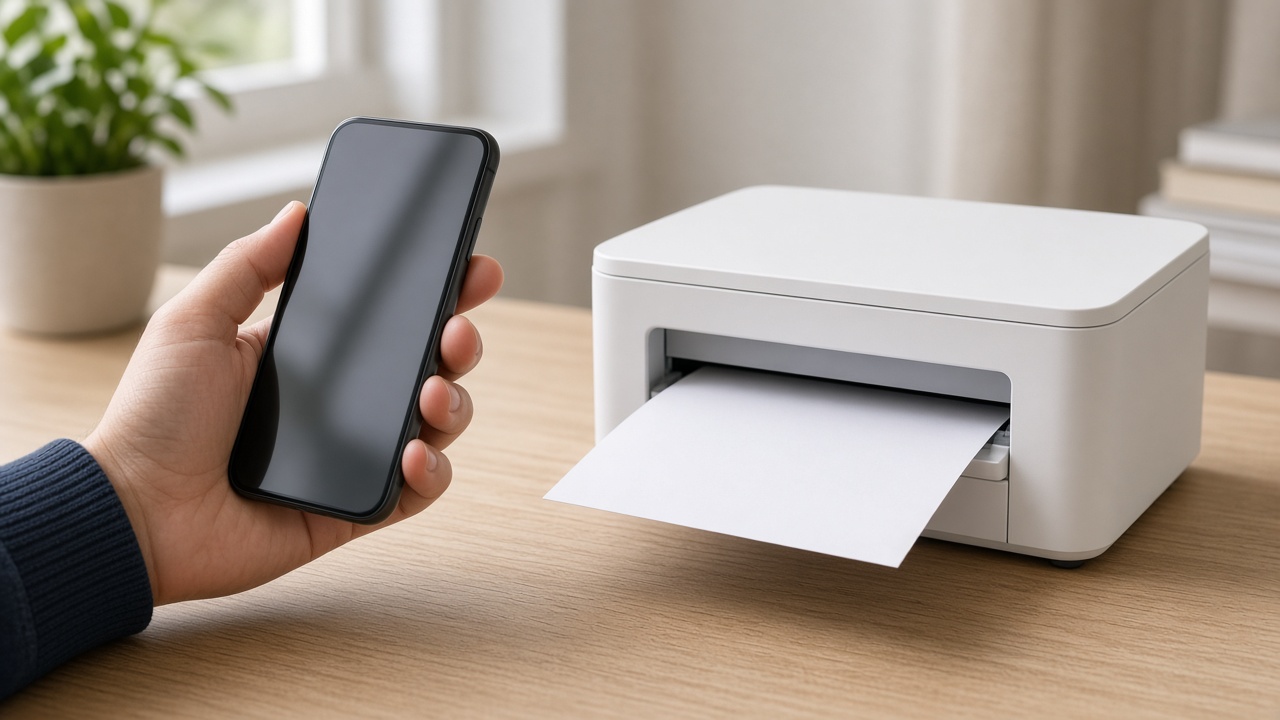
Printing from a phone fails for a boring reason: the phone and the printer are not on a network where they can see each other. The share button is fine. The printer is usually asleep, on guest Wi-Fi, or on a band the phone is not using.
Put both devices on the same network
- The printer must already be joined to your home Wi-Fi and show Connected on its panel.
- The phone must use that same network, not cellular data and not a guest network.
- Guest Wi-Fi often blocks phones from seeing printers. Use the main network.
- Wake the printer before you tap Print. A sleeping printer does not always answer AirPrint in time.
If you are unsure the printer is online, print a network page from the printer menu. An IP address on that page means it is on the LAN.
Print from an iPhone or iPad
- Open the photo, Mail message, or file.
- Tap the share icon, then Print. In some apps the path is the menu, then Print.
- Tap Select Printer and wait for the list.
- Choose the printer, set copies, and tap Print.
No AirPrint Printers Found means the phone did not get a reply. Wake the printer, confirm Wi-Fi, and toggle the iPhone’s Wi-Fi off and on once. Then open Print again.
Older or budget printers are not AirPrint printers. In that case install the brand app (HP Smart, Canon PRINT, Epson Smart Panel, or Brother iPrint&Scan), add the printer there, and print from that app.
Print from Android
- Open the photo or document.
- Tap Share or the three-dot menu and choose Print.
- Pick the printer. If the list is empty, tap the dropdown and look for All printers.
- If nothing appears, install the brand app or Mopria Print Service from the Play Store, then try Print again.
A phone that can browse the web and still cannot see the printer is a discovery problem, not a document problem. The printer’s Wi-Fi isolation, a VPN on the phone, or a different SSID will do this. Turn the VPN off for the test.
When the computer prints and the phone does not
The Windows queue can work over a saved IP while phones rely on discovery. If the PC prints:
- The printer is online.
- The phone is on another band or a VPN.
- Or the printer does not advertise AirPrint and you need the brand app.
Put the phone on the same Wi-Fi name the printer joined. Forget guest networks. Then retry.
Call +1 888 759 4448 if the printer has an IP and the PC prints, but every phone in the house still cannot see it. That is a network visibility issue a remote session can trace from a computer on the same LAN.
Frequently asked questions
Do the phone and printer have to be on the same Wi-Fi?+
Yes. AirPrint and Android printing look on the local network. A phone on cellular, or on guest Wi-Fi while the printer is on the main network, will not see the printer.
Why does my iPhone say No AirPrint Printers Found?+
The printer may be off, on a different network, or not AirPrint-capable. Confirm the printer is on the same Wi-Fi, wake it, and try again. If it still fails, use the brand’s app.
How do I print from Android?+
Open the document or photo, tap Share or the menu, and choose Print. Android uses the printer’s Mopria or built-in plugin, or the brand app if the system print dialog is empty.
My printer only supports 2.4 GHz. Does that matter for a phone?+
The printer must join 2.4 GHz. The phone can stay on 5 GHz only when both bands are the same network and the router allows devices to see each other. If the phone cannot find the printer, put the phone on the 2.4 GHz name for the test.
Can you set phone printing up remotely?+
Someone with the phone still has to tap Print. Remote support can put the printer on the network and fix the Windows queue, which is what AirPrint and Android depend on in the house.