Printer Offline? Here's Why It Happens (And 12 Ways to Fix It Fast)

M
Michael Chen, Certified Printer Technician
Jan 23, 2026 · 16 min read

Is your printer showing offline when it's clearly on? Discover why printers go offline and get 12 tested solutions that work for HP, Canon, Epson, Brother & all major brands.

Printer Offline? Here's Why It Happens (And 12 Ways to Fix It Fast)

The ultimate troubleshooting guide for the most frustrating printer problem: the offline error. Learn exactly why your printer shows offline when it's powered on, and follow our step-by-step fixes for Windows, Mac, and all major printer brands.


Printer Offline? Here's Why It Happens (And 12 Ways to Fix It Fast)

Your printer is sitting right there. The power light is on. The display shows it's ready. You can literally touch it.

Yet your computer insists: "Printer Offline."

This is the #1 most searched printer problem on Google, and for good reason. It's maddening. It makes zero sense. And it always seems to happen when you're already running late for a meeting.

I've been fixing printers professionally for over 12 years, and I've seen this exact problem thousands of times. The good news? The "offline" error is almost never a hardware failure. The bad news? There are about fifteen different things that could be causing it.

But don't worry. I'm going to walk you through every single fix, starting with the simplest solutions that work 80% of the time, then moving to the advanced troubleshooting for stubborn cases.

By the end of this guide, your printer will be back online, and you'll know exactly how to prevent this from happening again.

What Does "Printer Offline" Actually Mean?

When your computer says the printer is "offline," it means one simple thing: your computer can't communicate with your printer right now.

That's it. The printer might be working perfectly fine. But somewhere along the communication chain between your device and the printer, something broke down.

Think of it like calling someone whose phone is turned off. Your phone works. Their phone works. But the connection can't be established, so the call fails.

The disconnect could be happening at any point: the cable connection, the WiFi network, the printer software, the computer's settings, or even Windows deciding to be "helpful" by changing settings without asking you.

Why Printers Go Offline (The Real Reasons)

Before we dive into fixes, here's what's actually causing this nightmare:

The #1 Culprit: "Use Printer Offline" Mode Got Enabled
Windows has a feature called "Use Printer Offline" that was designed to let you queue documents when your printer is temporarily unavailable. The problem? This setting gets accidentally enabled all the time, and then your printer stays offline even after it's back online. This is the most common cause.

The Network Changed

Your printer was connected to "HomeNetwork" but now it's trying to connect to "HomeNetwork_5G" or your router reset and assigned new IP addresses. The printer and computer are no longer on the same network.

The Print Spooler Service Crashed

Windows uses a background service called the "Print Spooler" to manage print jobs. When this service crashes or hangs, all printers show as offline until it's restarted.

Driver Conflicts After Updates

Windows Update installed a new "compatible" driver without asking, and now the old driver and new driver are fighting for control. Or the driver got corrupted during installation.

Power Saving Mode Issues

Your printer went into sleep mode to save energy, but it's not waking up properly when you send a print job. This happens a lot with wireless printers.

The Default Printer Changed

Windows 10 and 11 have a "helpful" feature that automatically sets the last printer you used as the default. So you printed to the office printer yesterday, and now Windows is trying to send all jobs there instead of to your home printer.

Firewall or Antivirus Blocking Communication
Your security software decided the printer connection looks suspicious and blocked it, or a Windows Firewall update changed settings.

USB Cable or Port Issues
For wired printers, a loose USB connection, damaged cable, or malfunctioning USB port can cause intermittent offline status.
Router Issues

The router's DHCP assigned your printer a new IP address, or the router is having connectivity issues.

Now let's fix it.

The 12-Step Solution (From Simplest to Most Advanced)

Step 1: Check "Use Printer Offline" Mode (Fixes 60% of Cases)
This is the most common culprit, and it's the easiest to fix.

For Windows 11:

  • Press Windows key + I to open Settings
  • Click "Bluetooth & devices" → "Printers & scanners"
  • Click on your offline printer
  • Click "Open print queue"
  • Click "Printer" in the menu bar at the top
  • If "Use Printer Offline" has a checkmark, click it to uncheck it
  • Your printer should immediately show as online

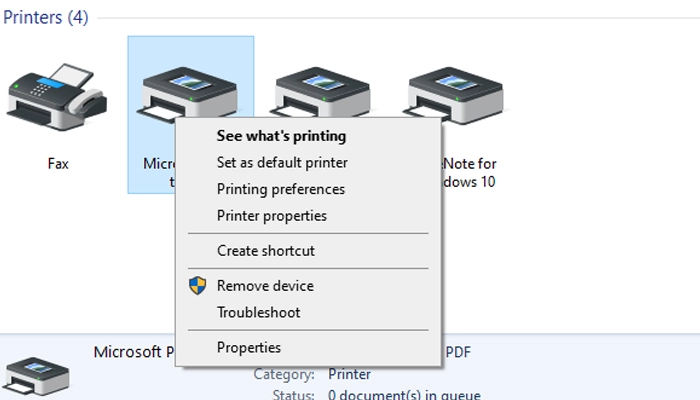
For Windows 10:

  • Open Control Panel
  • Click "Devices and Printers"
  • Right-click your offline printer
  • Select "See what's printing"
  • Click "Printer" in the menu bar
  • Uncheck "Use Printer Offline" if it's checked

For Mac:

  • Open System Settings → Printers & Scanners
  • Select your printer
  • Click "Options & Supplies"
  • Uncheck "Pause printing" if enabled
    Why this works: This setting tells your computer to stop trying to communicate with the printer. Unchecking it reestablishes the connection.

Result: If this was the problem, your printer will show online immediately and start processing any queued documents.

Step 2: Restart Everything (The Magic Reset)

Yes, this is the classic "turn it off and on again." And yes, it works about 30% of the time when
Step 1 doesn't help.

The correct order matters:

    1. Turn off your printer using the power button (don't just unplug it)
    1. Unplug the printer's power cable from the wall
    1. Restart your computer (full restart, not just sleep)
    1. Restart your wireless router (unplug for 30 seconds)
    1. Wait 2 minutes for everything to fully shut down
    1. Plug in and turn on the router first
    1. Wait for the router to fully boot (all lights stable)
    1. Plug in and turn on the printer
    1. Wait for the printer to fully initialize
    1. Turn on your computer

Why this works: This clears temporary glitches in memory, resets network connections, and forces all devices to re-establish communication from scratch.

Pro tip: While the printer is unplugged, hold the power button for 5 seconds to drain any residual power. This fully resets the printer's memory.

Step 3: Set the Correct Default Printer
Windows might be trying to send jobs to the wrong printer, causing your actual printer to show offline.

For Windows 11:

  • Settings → Bluetooth & devices → Printers & scanners
  • Find your printer in the list
  • Click on it
  • Click "Set as default"
  • Turn OFF "Let Windows manage my default printer" (this feature causes problems)

For Windows 10:

  • Control Panel → Devices and Printers
  • Right-click your printer
  • Select "Set as default printer"
  • Settings → Devices → Printers & scanners
  • Turn OFF "Let Windows manage my default printer"

Why this works: Your print jobs are being sent to the correct printer, and Windows stops automatically switching between printers.

Step 4: Clear the Print Queue

Stuck print jobs can crash the print spooler and make your printer appear offline.

Windows:

  • Open Settings → Printers & scanners
  • Click your printer → "Open print queue"
  • Click "Printer" → "Cancel All Documents"
  • If documents won't cancel, proceed to Step 5 (restart print spooler)

Mac:

  • System Settings → Printers & Scanners
  • Select your printer
  • Click "Open Print Queue"
  • Click the X next to each document to cancel

Alternative method if the above doesn't work:

Press Windows + R

Type: C:\Windows\System32\spool\PRINTERS
Delete all files in this folder (you may need admin permission)
Restart the Print Spooler service (see Step 5)

Why this works: Corrupted print jobs can hang the entire printing system. Clearing them allows the printer to start fresh.
Step 5: Restart the Print Spooler Service
The Print Spooler is the Windows service that manages all printing. When it crashes, all printers go offline.

Windows Method:

    1. Press Windows + R to open Run dialog
    1. Type services.msc and press Enter
    1. Scroll down to find "Print Spooler"
    1. Right-click on "Print Spooler"
    1. Click "Restart"
    1. If it's not running, click "Start"
    1. Right-click again → Properties
    1. Set "Startup type" to "Automatic"
    1. Click Apply → OK

Windows Method:

  • Press Windows + R to open Run dialog
  • Type services.msc and press Enter
  • Scroll down to find "Print Spooler"
  • Right-click on "Print Spooler"
  • Click "Restart"
  • If it's not running, click "Start"
  • Right-click again → Properties
  • Set "Startup type" to "Automatic"
  • Click Apply → OK

Command Line Method (faster):

  • Press Windows + X
  • Select "Windows Terminal (Admin)" or "Command Prompt (Admin)"
  • Type: net stop spooler
  • Press Enter
  • Type: net start spooler
  • Press Enter

Why this works: Restarting the spooler service clears any crashes or hangs and reinitializes the printing system.

Signs the spooler was the problem: All printers show online again, and print jobs that were stuck start processing.

Step 6: Check Your Network Connection (Wireless Printers)

For WiFi printers, connection issues are extremely common.
Verify printer is connected to WiFi:

On the printer's control panel, find Network or WiFi settings
Check which network the printer is connected to
Verify it matches your computer's WiFi network name
Check the signal strength (weak signal = intermittent offline issues)

Verify computer and printer are on the same network:

  • Your computer on "HomeNetwork" and printer on "HomeNetwork_5G" won't work
  • Guest networks are often isolated from main networks
  • VPNs can block printer communication

Test the connection:

  • Find your printer's IP address (print a network configuration page from the printer)
  • Open Command Prompt
  • Type: ping [printer IP address] (example: ping 192.168.1.100)
  • If you get "Reply from..." = connection is working
  • If you get "Request timed out" = connection is broken

Reconnect printer to WiFi:

  • On printer control panel, go to Network settings
  • Select WiFi Setup or Wireless Setup Wizard
  • Choose your network
  • Enter WiFi password
  • Print a test page to confirm connection

Why this works: Many offline issues with wireless printers are simply the printer losing WiFi connection or connecting to the wrong network.

Step 7: Check Physical Connections (Wired Printers)

For USB-connected printers, physical connection issues are often the culprit.

Check the USB cable:

  • Ensure the cable is firmly plugged into both printer and computer
  • Try unplugging and reconnecting both ends
  • Look for any visible damage to the cable
  • Try a different USB port on your computer
  • Try a different USB cable if you have one

Check for USB port issues:

  • Try all available USB ports
  • Avoid USB hubs if possible (connect directly to computer)
  • USB 3.0 ports (blue inside) sometimes have compatibility issues with older printers
  • Try a USB 2.0 port (black inside) instead

Check the printer:

Make sure the printer is plugged into a working power outlet
Check that all panels and doors are closed
Look for error lights or messages on the display

Why this works: A loose or damaged USB connection will cause the printer to constantly disconnect and show as offline.

Step 8: Remove and Reinstall the Printer

Sometimes the printer's configuration gets corrupted, and a clean reinstall fixes it.

Windows 11:

  • Settings → Bluetooth & devices → Printers & scanners
  • Click your offline printer
  • Click "Remove"
  • Confirm by clicking "Yes"
  • Restart your computer
  • Go back to Printers & scanners
  • Click "Add a printer or scanner"
  • Windows will search and find your printer
  • Click on your printer when it appears
  • Follow the prompts to install

Windows 10:

  • Control Panel → Devices and Printers
  • Right-click your printer
  • Select "Remove device"
  • Restart computer
  • Control Panel → Devices and Printers
  • Click "Add a printer"
  • Select your printer from the list
  • Follow installation prompts

For network printers that don't appear automatically:

  • After clicking "Add a printer"
  • Click "The printer that I want isn't listed"
  • Select "Add a printer using a TCP/IP address or hostname"
  • Enter your printer's IP address
  • Follow the prompts

Why this works: This clears any corrupted settings or registry entries associated with the printer and establishes a fresh connection.

Step 9: Update or Reinstall Printer Drivers

Outdated, corrupted, or conflicting drivers are a major cause of offline errors, especially after Windows updates.
Check current driver status:

  • Press Windows + X
  • Select "Device Manager"
  • Expand "Print queues" or "Printers"
  • Look for any yellow warning triangles (indicates driver problem)
  • Right-click your printer → Properties
  • Check the "General" tab for any error messages

Update drivers automatically:

  • Device Manager → Printers
  • Right-click your printer
  • Select "Update driver"
  • Choose "Search automatically for drivers"
  • Let Windows install any updates

Download drivers from manufacturer:

This is the BEST method for fixing driver issues:

  • Go to your printer manufacturer's support website:

  • HP: support.hp.com

  • Canon: usa.canon.com/support

  • Epson: epson.com/support

  • Brother: support.brother.com

  • Search for your exact printer model

  • Download the latest driver for your operating system

  • Uninstall the old driver first:

  • Device Manager → Right-click printer → "Uninstall device"

  • Check "Delete the driver software" → Uninstall

  • Run the downloaded driver file

Follow installation instructions

Restart computer

Why this works: Fresh drivers eliminate compatibility issues and communication errors between Windows and your printer.

Important: Always download drivers directly from the manufacturer's website, never from third-party "driver download" sites.

Step 10: Assign a Static IP Address (Wireless Printers)

Dynamic IP addresses (DHCP) can cause offline issues when your printer's IP address changes.

  • Find printer's current IP address:

  • Print a network configuration page from your printer

  • Usually found in Settings → Network → Print Network Info

Look for the IP address (example: 192.168.1.150)

Assign static IP in your router:

  • Open web browser
  • Enter router's IP address (usually 192.168.1.1 or 192.168.0.1)
  • Log in with router credentials
  • Find DHCP or Address Reservation settings
  • Add your printer's MAC address with a reserved IP address
  • Save settings

Assign static IP on the printer:

  • On printer control panel, go to Network Settings
  • Select TCP/IP or IP Configuration
  • Change from DHCP to Manual/Static
  • Enter IP address: 192.168.1.150 (use an unused IP in your range)
  • Enter Subnet Mask: 255.255.255.0 (most common)
  • Enter Gateway: (your router's IP, usually 192.168.1.1)
  • Save settings

Update printer on your computer with new IP:

  • Settings → Printers & scanners
  • Remove old printer
  • Add printer using the static IP address

Why this works: A static IP prevents the printer from getting a different address, which would break the connection to your computer.

Pro tip: Choose an IP address outside your router's DHCP range to avoid conflicts.

Step 11: Disable Printer Power Management

Aggressive power-saving settings can prevent printers from waking up properly, causing offline errors.

On your computer (Windows):

  • Device Manager → Print queues
  • Right-click your printer → Properties
  • Click "Power Management" tab
  • Uncheck "Allow the computer to turn off this device to save power"
  • Click OK

On the printer:

  • Access printer's control panel or settings menu
  • Find Power Settings or Sleep Mode
  • Disable Sleep Mode or increase the timeout to maximum
  • For network printers, disable "Energy Efficient Ethernet" if available

In printer properties:

  • Control Panel → Devices and Printers
  • Right-click printer → Printer Properties
  • Look for Power Management or Energy settings
  • Disable any sleep or power-saving features

Why this works: Prevents the printer from going into a deep sleep state that it can't wake from when a print job arrives.

Tradeoff: Printer will use slightly more electricity, but you'll have far fewer offline issues.

Step 12: Check Firewall and Security Software

Sometimes antivirus or firewall software blocks printer communication, especially after updates.

Windows Firewall:

  • Control Panel → Windows Defender Firewall
  • Click "Allow an app through Windows Firewall"
  • Look for your printer software or print spooler
  • Make sure boxes are checked for both Private and Public networks
  • If printer software isn't listed, click "Allow another app"
  • Browse to printer software and add it

Antivirus software:

  • Open your antivirus program (Norton, McAfee, Kaspersky, etc.)
  • Find Firewall or Network Protection settings
  • Add your printer software to the allowed list
  • Add your printer's IP address to trusted devices

Temporarily disable to test:

  • Temporarily disable Windows Firewall
  • Try printing
  • If it works, the firewall was blocking it
  • Re-enable firewall and add proper exceptions

Why this works: Security software sometimes sees printer network traffic as suspicious and blocks it, causing offline errors.

Important: Never leave your firewall disabled. Always re-enable it and add proper exceptions instead.

Brand-Specific Quick Fixes

HP Printers

  • Use HP Print and Scan Doctor (free download from HP's website)
  • It automatically diagnoses and fixes most HP printer problems
  • Specifically good at fixing offline issues

Canon Printers

  • Hold "Stop" button for 5 seconds to reset
  • Reinstall from canon.com/ijsetup
  • Check that "Canon IJ Network" service is running in Windows Services

Epson Printers

  • Use Epson Status Monitor utility
  • Disable "Enable bidirectional support" in printer properties
  • Update Epson Event Manager software

Brother Printers

  • Update Brother ControlCenter software
  • In printer properties, disable "Enable SNMP status"
  • Use Brother's iPrint&Scan app for wireless setup

How to Prevent Future Offline Issues

1. Use a static IP address for your printer (see Step 10)

This eliminates 70% of wireless offline problems

2. Disable "Let Windows manage my default printer"

  • Settings → Printers & scanners
  • Turn OFF this feature
  • It causes more problems than it solves

3. Keep drivers updated

  • Check manufacturer's website quarterly for driver updates
  • Subscribe to update notifications if available

4. Adjust power settings

  • Disable sleep mode on printer
  • Disable USB selective suspend on computer

5. Use quality USB cables

For wired printers, cheap cables cause intermittent disconnections
Use certified USB cables under 15 feet long

6. Position wireless printers properly

  • Within 30 feet of router
  • Avoid thick walls between printer and router
  • Keep away from microwaves and cordless phones

7. Restart monthly

  • Restart your printer and router monthly
  • Prevents slow memory buildup and connection degradation

8. Use wired connections when possible

  • Ethernet or USB connections are more stable than WiFi
  • Consider adding an Ethernet cable to your wireless printer

When to Call for Professional Help

You've tried everything in this guide and your printer is still offline. Here's when it's time to get professional support:

  • Printer works fine on other computers but not yours (corrupted Windows installation)
  • Printer randomly goes offline every few hours despite static IP
  • You see hardware error codes on the printer display
  • Printer is more than 7 years old (may be failing hardware)
  • You're in an enterprise network environment (may need IT department)

Manufacturer support contact:

  • HP: 1-800-474-6836
  • Canon: 1-800-652-2666
  • Epson: 1-562-276-1305
  • Brother: 1-877-276-8437

The Bottom Line

The "printer offline" error is frustrating, but it's almost always fixable. In my experience:

  • 60% of cases: "Use Printer Offline" is enabled (Step 1)

  • 20% of cases: Print spooler crashed or network connection lost (Steps 2-6)

  • 15% of cases: Driver issues or configuration problems (Steps 7-9)

  • 5% of cases: Advanced network or firewall issues (Steps 10-12)

Start with Step 1 and work your way down. Most people fix their issue within the first 3 steps.

The key is methodical troubleshooting. Don't skip steps. Don't try random things you find on forums. Follow this guide in order, and you'll get your printer back online.

And once it's working? Set that static IP address and disable Windows' automatic printer management. Your future self will thank you.

Need help right away?
Call our technicians for fast remote printer support.
Call +1 888 759 4448

Frequently asked questions

Why does my printer keep going offline repeatedly after I fix it?+

This usually indicates one of three issues: dynamic IP address changes (fix with static IP), aggressive power-saving settings (disable sleep mode), or weak WiFi signal (move printer closer to router or add WiFi extender). If using USB, try a different cable as intermittent connection causes repeated offline errors.

Does "printer offline" mean my printer is broken?+

No! "Offline" is a communication error, not a hardware failure. The printer is usually working fine; it's just can't talk to your computer. Think of it like a phone call that won't connect—both phones work, but the connection failed. 95% of offline errors are software or network issues, not broken printers.

Why does my wireless printer go offline when I close my laptop?+

When your laptop sleeps, it disconnects from WiFi, breaking the connection to the printer. When you wake it, the laptop reconnects but the printer might still be in sleep mode. Fix this by: (1) disabling printer sleep mode, (2) disabling "Allow computer to turn off this device" in printer properties, or (3) restarting the print spooler service after waking your laptop.

My printer works fine for days then suddenly goes offline. Why?+

This is typically caused by dynamic IP address changes. Your router's DHCP lease expires (usually every 24-48 hours), assigns your printer a new IP address, and your computer can't find it anymore. Solution: Assign a static IP address to your printer (see Step 10). This permanently fixes intermittent offline issues.

I fixed the offline issue but now it's back after restarting my computer. Why? A+

The Print Spooler service isn't set to start automatically. Fix: Press Windows + R, type "services.msc", find "Print Spooler", right-click Properties, set "Startup type" to "Automatic", click OK. Now the service will start every time you boot your computer, preventing offline errors.

Can I fix printer offline issues on Mac the same way?+

Mac offline issues are usually simpler to fix. Try: (1) System Settings → Printers & Scanners → Remove printer → Add it back, (2) Reset printing system (hold Control+Option while clicking the printer list, select "Reset printing system"), (3) Update to latest macOS version. Mac rarely has the complex driver conflicts that Windows does.

Will updating Windows fix my printer offline problem?+

Sometimes yes, sometimes no. Windows updates can either fix printer bugs OR cause new driver conflicts. If your printer was working fine before an update, the update likely broke something—reinstall drivers from the manufacturer. If the printer was always problematic, updates might help—but only after trying all steps in this guide first.

My printer is offline only on one computer but works on others. What's wrong?+

This indicates a computer-specific issue, not a printer problem. Try: (1) Remove and reinstall the printer on the affected computer, (2) Update or reinstall printer drivers, (3) Check if firewall is blocking printer, (4) Create a new Windows user account and test there (corrupted user profile), (5) If nothing works, your Windows installation may be corrupted.

How do I stop Windows from automatically changing my default printer?+

Windows 10 and 11 have a feature that sets the last-used printer as default, causing confusion. Disable it: Settings → Bluetooth & devices (or Devices) → Printers & scanners → Turn OFF "Let Windows manage my default printer." Then manually set your preferred default printer and it will stay that way.

Should I use WiFi or USB connection to avoid offline issues?+

USB connections are significantly more stable and almost never cause offline issues. If your printer supports both, use USB for your primary computer. Use WiFi only when you need to print from multiple devices. For maximum stability: connect printer to router via Ethernet cable (many printers have Ethernet ports), then print via network from your computer.

You might also like

📞 Need immediate help? Call +1 888 759 4448 and get fast, reliable printer support from ZamZam Print experts.


