The complete troubleshooting guide for when your printer absolutely refuses to print. Covers all major causes from empty ink to driver conflicts, with brand-specific solutions for HP, Canon, Epson, Brother, and more.
Printer Not Printing? 6 Reasons Why (And How to Fix Each One)
You hit "Print." The printer makes some promising noises. Maybe the power light blinks encouragingly. Then... nothing. No paper comes out. No error message. Just silence and betrayal.
"Printer not printing" is the second most-searched printer problem on Google (right after "printer offline"), and I've personally walked thousands of frustrated users through fixing it over my 15 years in printer support.
Here's what makes this problem particularly maddening:
unlike an error message that tells you what's wrong, a printer that simply refuses to print gives you zero information to work with. It's like your printer is giving you the silent treatment.
But here's the good news: there are only 14 main reasons why a printer won't print, and I'm going to show you how to diagnose and fix every single one of them. We'll start with the most common culprits (which fix 70% of cases) and work our way through to the rare advanced issues.
By the end of this guide, your printer will be printing again, guaranteed.
How to Diagnose Why Your Printer Won't Print
Before we jump into solutions, let's figure out exactly what type of "not printing" problem you're dealing with. This will save you hours of trial and error.
Ask yourself these questions:
Does anything happen when you click Print?
- Nothing at all → Connection or communication issue
- Printer makes noise but no paper → Mechanical or cartridge issue
- Paper feeds but prints blank → Ink or printhead problem
- Partial/garbled printing → Driver or spooler issue
Did this start suddenly or gradually?
- Sudden (worked yesterday) → Software update, driver conflict, or network change
- Gradual (quality declining) → Ink running low or printhead clogging
Does it affect all documents or just some?
- All documents → Printer hardware or connection issue
- Only certain documents → Software or driver issue
- Only certain colors → Ink or printhead issue
What was happening before it stopped working?
- Windows/Mac update → Driver conflict
- Moved the printer → Connection issue
- Replaced cartridges → Cartridge installation or compatibility
- Nothing changed → Random glitch or scheduled maintenance needed
Now let's fix it.
The 14 Reasons Your Printer Won't Print (And Exact Fixes)
1. The Printer Isn't Actually Turned On (No, Really)
Why this happens: I know this sounds ridiculous, but you'd be shocked how often this is the issue. The printer might be plugged in, but the power button wasn't pressed, or it's in sleep mode so deep it looks off.
How to check:
- Look at the printer's display panel - is it lit up?
- Is there ANY light on the printer (even a small status LED)?
- Press the power button and wait 30 seconds for full startup
- Some printers have a separate power switch on the back AND a button on the front
The fix:
- Check if the printer is plugged into a power strip that's turned off
- Press the power button firmly (some buttons require a long press)
- Wait for the full startup sequence (can take 1-2 minutes on some models)
- Check if there's a "sleep mode" that needs to be disabled in printer settings
- Try plugging directly into the wall outlet instead of a power strip
How you'll know this was it:
The printer display lights up, you hear initialization sounds, and lights start blinking.
2. The Printer Is Out of Paper (Or Paper Is Loaded Wrong)
Why this happens: Empty paper tray, paper loaded incorrectly, wrong paper size selected, or paper guides aren't adjusted properly.
How to check:
- Open every paper tray and verify there's actually paper in it
- Check if paper is loaded correctly (most trays have diagrams)
- Look for small bits of torn paper from previous jams
- Verify paper isn't curled, damp, or stuck together
The fix:
-
Remove all paper from the tray
-
Fan the paper to separate sheets (static makes them stick)
-
Adjust the paper guides so they're snug but not too tight against the paper
-
Don't overfill the tray (max 100-150 sheets for most printers)
-
Make sure paper is facing the correct direction:
-
For most printers: print side DOWN in the tray
-
Check your printer manual to be sure
-
Push the tray in FIRMLY until it clicks
-
Check printer display or computer for "paper size" settings
-
Make sure document size matches loaded paper (8.5x11" vs A4 vs legal)
Common mistakes:
- Loading paper upside down
- Paper guides too loose (causes jams) or too tight (causes feeding problems)
- Mixing different paper types/sizes in same tray
- Using paper that's too thick or too thin for your printer
How you'll know this was it: The printer feeds paper when you send a print job.
3. Ink or Toner Cartridges Are Empty, Clogged, or Improperly Installed
Why this happens: Empty cartridges, dried ink blocking printheads, protective tape still on new cartridges, cartridges not seated correctly, or using expired cartridges.
How to check:
- Check ink levels on printer display or through computer
- Verify you removed all protective tape from new cartridges
- Look for blinking lights indicating low ink
- Print a test page directly from the printer (bypasses computer issues)
The fix for empty cartridges:
Check ink levels:
-
On printer: Settings → Ink Levels or Maintenance
-
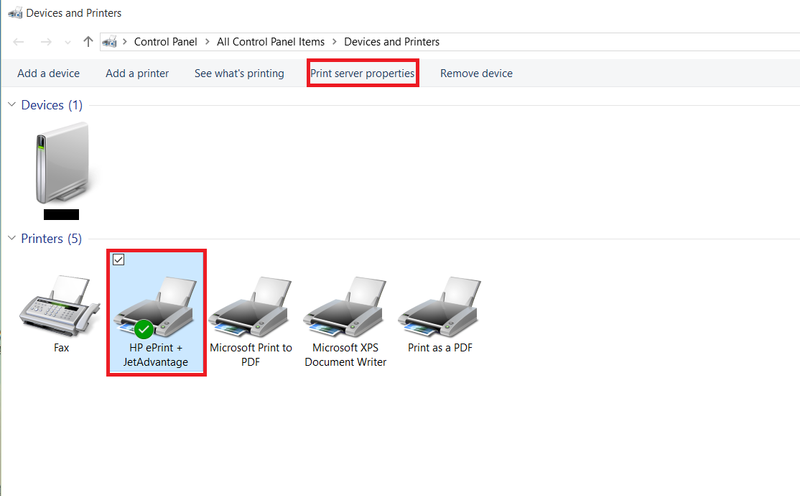
On Windows: Control Panel → Devices and Printers → Right-click printer → Printing Preferences → Maintenance
-
On Mac: System Settings → Printers → Options & Supplies
-
Replace any cartridge showing empty or very low
-
Even if one color is empty, the printer might refuse to print at all
The fix for new cartridges not working:
- Remove the cartridge
- Check for protective tape or orange pull-tabs (VERY common oversight)
- Look for plastic clips or seals on the ink nozzles
- Verify you removed ALL protective materials
- Clean the copper contacts on the cartridge with a lint-free cloth
- Reinsert cartridge firmly until it clicks into place
- Close all covers and doors completely
The fix for clogged printheads:
Run printer's cleaning cycle:
-
Access through printer display: Settings → Maintenance → Clean Printhead
-
Or through computer: Printer Properties → Maintenance → Clean
-
Run cleaning 2-3 times if needed (wait 5 minutes between cycles)
-
Print nozzle check pattern to see which colors are clogged
-
For stubborn clogs:
-
Remove cartridges
-
Dampen lint-free cloth with distilled water
-
Gently dab the printhead (the part with ink nozzles)
-
Let dry 10 minutes before reinstalling
Why the protective tape matters: I've had customers insist their new cartridge is defective when really there's still orange tape covering the ink outlet. This happens ALL THE TIME.
How you'll know this was it: You'll see ink on the test page, and actual content prints instead of blank pages.
4. Print Queue Is Stuck or Corrupted
Why this happens: A corrupted document in the queue crashes the print spooler, multiple failed print jobs pile up, or the spooler service hangs and stops processing.
How to check:
- Look in the system tray for a printer icon with a red or yellow exclamation mark
- Open the print queue to see if documents are stuck with "Error" or "Printing" status
- Check if the queue shows dozens of old print jobs
The fix (Windows 11/10):
-
Open Settings → Bluetooth & devices → Printers & scanners
-
Click your printer
-
Click "Open print queue"
-
Click "Printer" menu → "Cancel All Documents"
-
If documents won't cancel, restart the Print Spooler service:
-
Press Windows + R
-
Type: services.msc
-
Find "Print Spooler"
-
Right-click → Restart
-
If that doesn't work, stop the spooler and manually clear:
-
Stop the Print Spooler service
-
Navigate to: C:\Windows\System32\spool\PRINTERS
-
Delete all files in this folder
-
Restart Print Spooler service
The fix (Mac):
-
System Settings → Printers & Scanners
-
Select your printer
-
Click "Open Print Queue"
-
Click the X next to each document to cancel
-
If stuck, reset the printing system:
-
Hold Control + Option
-
Click on the printer list
-
Select "Reset printing system"
Warning: This removes ALL printers, you'll need to re-add them
How you'll know this was it: The queue clears, stuck documents disappear, and new print jobs start processing.
5. The Printer Is Set to "Use Printer Offline" Mode
Why this happens: Windows has a setting called "Use Printer Offline" that gets accidentally enabled (often after sleep mode or network changes), telling the computer to queue documents instead of sending them to the printer.
How to check:
- Open print queue and look for "Use Printer Offline" with a checkmark in the Printer menu
- Printer status shows "Offline" even though printer is on
The fix:
- Open Settings → Printers & scanners
- Click your printer → "Open print queue"
- Click "Printer" in the menu bar
- If "Use Printer Offline" is checked, click it to uncheck
- Printer should immediately show as online
Prevention:
- Turn off "Let Windows manage my default printer" in Settings
- This feature causes Windows to automatically enable offline mode
How you'll know this was it: Printer status changes from "Offline" to "Ready" or "Idle" and print jobs start processing.
6. Wrong Printer Selected as Default
Why this happens: Multiple printers installed (home printer, office printer, PDF printer), Windows automatically changed default printer, or you accidentally printed to a different printer.
How to check:
- Look at which printer is selected in your print dialog
- Check if there's more than one printer with similar names
- See if documents are being sent to "Microsoft Print to PDF" or "Fax" instead
The fix:
Set correct default printer:
- Windows: Settings → Printers & scanners → Click your printer → "Set as default"
- Mac: System Settings → Printers & Scanners → Select printer → "Default printer" dropdown
Disable automatic default printer switching (Windows):
- Settings → Printers & scanners
- Turn OFF "Let Windows manage my default printer"
Check before every print:
- In any program, look at the printer name in the print dialog BEFORE clicking print
- Change to correct printer if needed
Common scenario: You printed a PDF at work Friday. Windows set that network printer as default. Now at home, your documents are trying to print to the office printer.
How you'll know this was it: When you print, the job goes to the correct printer and actually comes out.
Brand-Specific Quick Fixes
HP Printers Not Printing
Most common issue: HP Print and Scan Doctor often solves it.
Quick fixes:
- Download HP Print and Scan Doctor (free tool from HP)
- Run it and let it automatically diagnose and fix issues
- For wireless: Restart HP wireless direct from printer menu
- Update firmware through HP Smart app
- Disable "HP Web Services" if causing conflicts
Canon Printers Not Printing
Most common issue: Printhead errors or cartridge not recognized.
Quick fixes:
- Hold "Stop" button for 5 seconds to reset
- In printer properties, disable "Enable bidirectional support"
- Clean printhead using printer's maintenance menu
- Update Canon IJ Network Tool
- Reinstall from canon.com/ijsetup
Epson Printers Not Printing
Most common issue: Printhead clogs (Epson printheads clog easily).
Quick fixes:
- Run head cleaning 3 times (wait 5 min between)
- Power flush: turn off, wait 6+ hours, turn on and clean immediately
- Use Epson Status Monitor to check exact ink levels
- Disable "Enable bidirectional support" in printer properties
- Update Epson Event Manager software
Brother Printers Not Printing
Most common issue: SNMP status errors or driver conflicts.
Quick fixes:
- In printer properties, disable "Enable SNMP status"
- Update Brother ControlCenter software
- Use Brother's iPrint&Scan app for wireless setup
- Check that toner cartridge lock is in the unlocked position
- Reset network settings from printer menu
Frequently asked questions
Why won't my printer print even though it has ink?+
The most common reasons are: protective tape still on new cartridges, clogged printhead, cartridge not properly seated, "Use Printer Offline" enabled, or print queue stuck. First, remove and reinstall cartridges to ensure they're seated correctly and all protective tape is removed. Then run a printhead cleaning cycle and check if "Use Printer Offline" is unchecked in the print queue.
My printer prints a test page but won't print from my computer. Why?+
This indicates the printer hardware works fine, but there's a communication problem between computer and printer. Causes: corrupted driver, wrong printer selected as default, print spooler crashed, or connection issue. Fix by: ensuring correct printer is selected, restarting print spooler service, and reinstalling printer drivers from manufacturer's website.
Why does my printer print blank pages?+
Common causes: protective tape/seals still on ink cartridges, completely clogged printhead, empty cartridges despite ink level showing otherwise, or printhead not making contact with paper. Remove cartridges and check for orange tape or plastic seals. Run printhead cleaning cycle 2-3 times. If using new cartridges, try removing and reinstalling them firmly.
How do I know if my printer drivers are corrupted?+
Signs of corrupted drivers: printer worked fine then suddenly stopped after Windows update, yellow warning triangle in Device Manager next to printer, printer prints test pages but not from programs, or getting "driver unavailable" errors. Fix by completely uninstalling current driver, restarting computer, then installing fresh driver downloaded from manufacturer's official website.
My wireless printer prints from phone but not computer. What's wrong?+
This indicates the printer's WiFi connection is working, but your computer isn't communicating with it properly. Check: Is computer connected to same WiFi network as printer? Is printer set as default on computer? Are printer drivers installed on computer? Try removing and re-adding the printer on your computer, ensuring you select the network/wireless option during setup.
Why does my printer say "offline" when it's clearly turned on?+
"Offline" means the computer can't communicate with the printer, not that the printer is off. Most common fix: Open print queue, click "Printer" menu, and uncheck "Use Printer Offline." Also disable "Let Windows manage my default printer" in Settings. For wireless printers, verify computer and printer are on same network, and restart router, printer, and computer in that order.
How long should I wait between printhead cleaning cycles?+
Wait at least 5 minutes between cleaning cycles. Running too many cleanings back-to-back wastes ink and can damage the printhead. Run 2-3 cleaning cycles max in one session. If still clogged, wait 6-8 hours (or overnight), then try again. For severe clogs, some people leave printer off overnight, then run cleaning immediately upon turning on—the wait helps dried ink soften.




