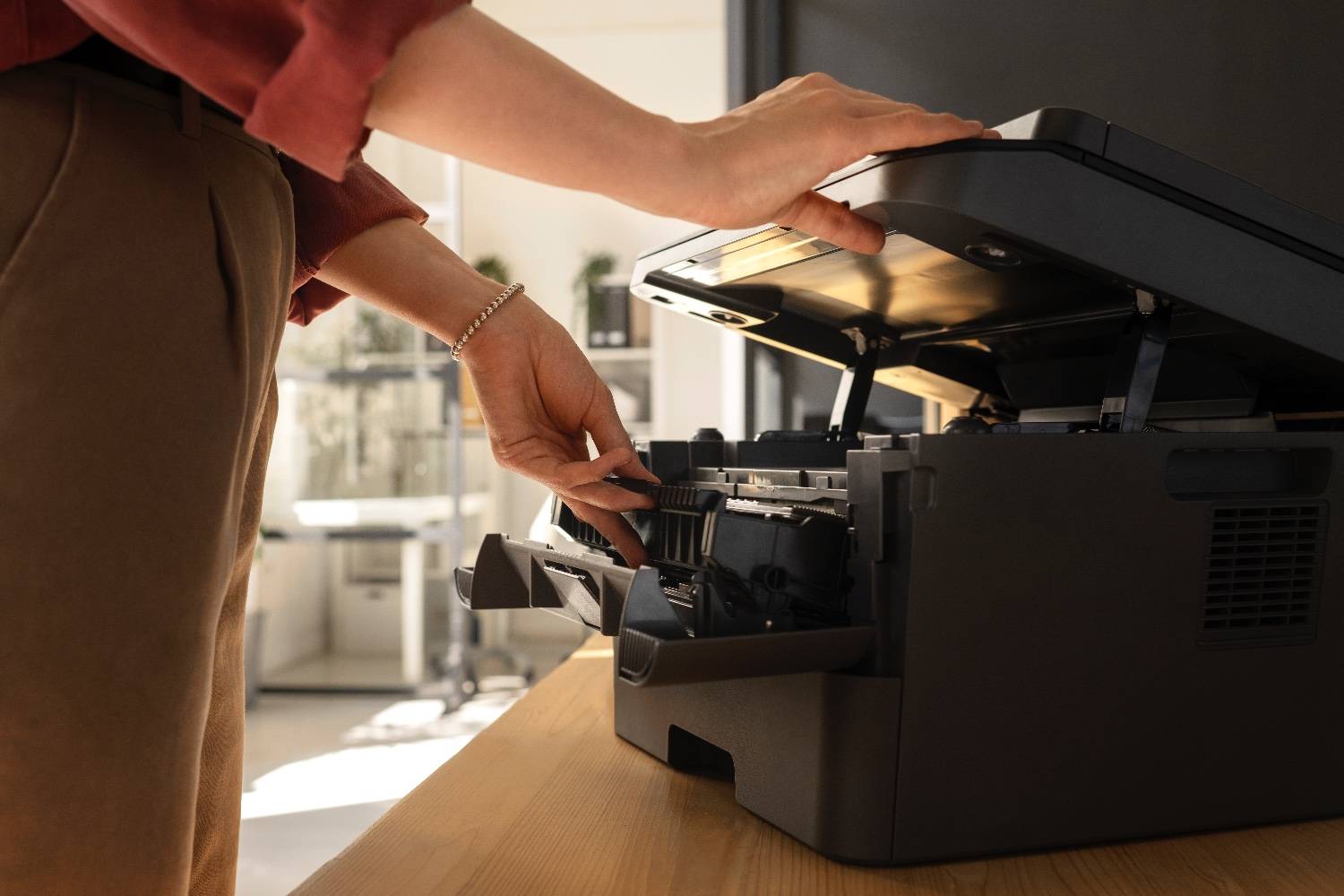
Firmware is the printer’s internal software. A good update can fix Wi-Fi drops, improve Windows 11 compatibility, or patch security issues. A bad update session — laptop sleep, Wi-Fi blip, power flicker — can leave the printer stuck on a progress bar.
This guide is about updating safely, not chasing every version number. Confirm you need the update, prepare the connection, then flash once without interruptions.
When an update is worth it
Update firmware when:
- The manufacturer lists a fix for your exact symptom (offline loops, scan failures, specific error codes).
- You just moved to Windows 11 and the printer behaves worse than on Windows 10.
- Security advisories mention your model family.
- The brand app shows a required update before other tools will work.
Wait if the printer is stable, you have no spare device to print with, or the only available file is a beta.
Gather the right file for your exact model
- Print a configuration page or read the model from the front panel — full model, not just “HP OfficeJet.”
- Open the official support site for HP, Epson, Brother, Canon, or Samsung/HP.
- Enter the model and choose your Windows version.
- Download Firmware (sometimes listed under Software or Utilities), not a random full driver package unless the notes say firmware is included.
- Read the release notes for USB-vs-network requirements and warnings about Instant Ink / cartridge policies on some HP units.
Prep checklist before you click Install
| Prep step | Why it matters |
|---|---|
| Plug the printer into a wall outlet (avoid flaky strips) | Power loss bricks flashes |
| Disable printer sleep / auto-off for the session | Sleep can cut the job mid-write |
| Prefer USB if Wi-Fi has been unstable | Network drops interrupt transfers |
| Close other print jobs and apps using the printer | Busy queues confuse updaters |
| Keep the PC awake; plug the laptop in | Sleep freezes the tool |
| Do not print, scan, or unplug during the update | Any interrupt risks corruption |
Run the update
- Open the official updater or run the downloaded firmware tool as Administrator.
- Accept the license and confirm the tool detected the correct model.
- Start the update and walk away from the power switch. Wait for Ready / success — some printers reboot more than once.
- After success, power-cycle the printer once, then print a test page and a network config page.
- If Windows still shows old quirks, reboot the PC and reprint.
Brand notes (quick)
- HP: HP Smart or the HP Support Assistant / firmware utility. Some updates enforce cartridge dynamic security — read the notes if you use third-party ink.
- Epson: Epson Software Updater or the model’s firmware utility from Epson support. Keep USB connected if the tool requests it.
- Brother: Brother Utilities or the firmware update tool for your series. Do not power off while the LCD says “Please Wait.”
- Canon: Canon support firmware tool or IJ utilities. Match region/model carefully — wrong regional packages are a common mistake.
If something goes wrong
- Wait at least 10 minutes before assuming failure; many printers look frozen while writing.
- If the tool errors, reboot PC and printer once, then retry only if the manufacturer says a second pass is safe.
- If the printer will not boot, stop DIY flashing and get help — recovery keys and forced modes are model-specific.
Need a technician to supervise the update?
Remote support can confirm the exact file, watch the flash session with you, and fix drivers or offline status after the reboot.
📞 Call +1 888 759 4448 for remote printer help across the US.
Frequently asked questions
Should I always update printer firmware?+
Update when you have a specific problem the release notes fix — offline bugs, security patches, or Windows compatibility — or when the manufacturer tool clearly recommends it. Skip random updates on a printer that already works if you are mid-deadline.
Can a firmware update brick my printer?+
Interrupted updates are the risk: power loss, unplugging USB, or closing the laptop mid-flash. Use a stable power source, wired connection when offered, and do not power off until the printer returns to Ready.
Where do I get official firmware?+
Use the manufacturer support site or the brand’s app (HP Smart, Epson Software Updater, Brother Utilities, Canon IJ/support tools). Avoid third-party “driver pack” sites that bundle outdated or unsafe files.
Do I need USB for firmware updates?+
Some models require USB; others allow network updates. If both are offered and your Wi-Fi is flaky, use USB. Keep the printer awake and disable sleep before you start.
What if the update fails?+
Do not keep force-powering off. Wait several minutes, then power-cycle once. If the printer will not boot or stays on a firmware screen, call support — recovery modes differ by brand and forcing more flashes can make it worse.