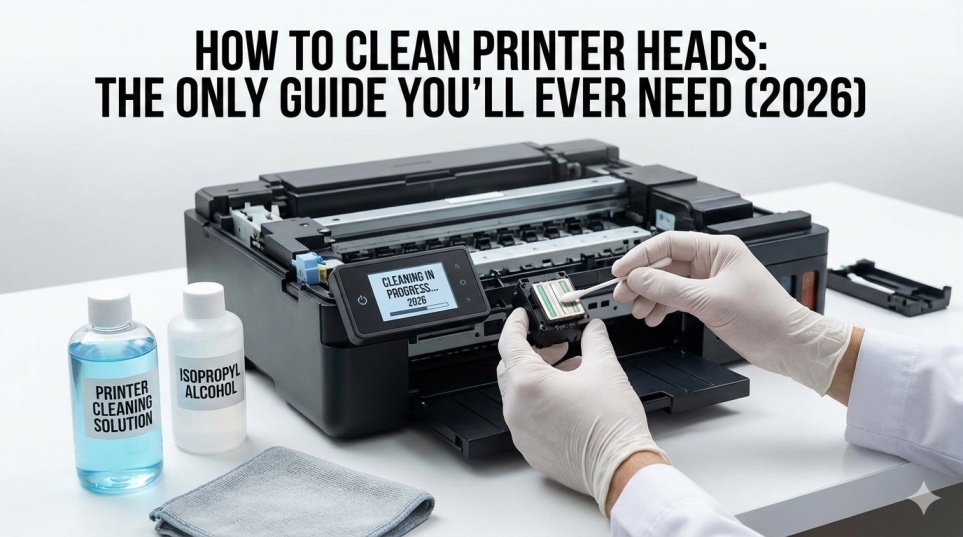
How to Clean Printer Heads: The Only Guide You'll Ever Need (2026)

D
Dr. Patricia Chen, Printhead Maintenance Expert
Feb 8, 2026 · 14 min read

Clogged printhead ruining your prints? Learn 5 proven methods to clean printer heads and fix streaky, faded prints. Works for HP, Canon, Epson, Brother. Save $100+ on repairs.

How to Clean Printer Heads: The Only Guide You'll Ever Need (2026)

The ultimate printhead cleaning guide with 5 proven methods from automatic cycles to deep cleaning techniques. Fix streaky prints, restore color quality, and save hundreds on printhead replacements with professional cleaning methods that actually work.

How to Clean Printer Heads: The Only Guide You'll Ever Need (2026)


You print a photo. Instead of vibrant colors and sharp details, you get streaks, white lines, missing colors, and an image that looks like it was printed through a screen door.

You check your ink levels. Full. You restart the printer. Same problem. You print again hoping it'll magically fix itself. It doesn't.

Welcome to the world of clogged printheads—the most common cause of terrible print quality and one of the most frustrating printer problems that makes you want to throw the entire printer in the trash.

"How to clean printer heads" is one of the most-searched printer maintenance questions on Google, with millions of users desperately trying to restore their print quality every month. The maddening part? Your printer has PLENTY of ink, but those microscopic nozzles are blocked with dried ink, preventing it from reaching the paper.
I've been teaching printhead cleaning techniques professionally for 13 years and have personally cleaned over 4,000 clogged printheads. Here's the truth manufacturers don't tell you: You can clean most clogged printheads yourself in under 10 minutes for FREE, saving the $60-150 they charge for printhead replacement.

This guide will show you FIVE different printhead cleaning methods, from the simplest automatic cleaning to advanced deep-cleaning techniques that recover printheads techs have given up on.

What Are Printer Heads and Why They Clog (Understanding the Problem)


What Printheads Actually Do

Printheads are the most critical component in inkjet printers. They contain hundreds of microscopic nozzles (50-150 microns wide—thinner than a human hair) that spray tiny droplets of ink onto paper.

On each print:

  • Printhead moves across paper
  • Nozzles fire 50,000+ droplets per second
  • Droplets combine to create images and text
  • Precision down to 1/4800th of an inch

Two types of printheads:

1. Integrated printheads (on cartridge)

  • Found on: HP 60-67 series, Canon 245/246, some Lexmark
  • Printhead is part of the ink cartridge
  • When cartridge replaced, you get new printhead
  • Easier to clean (just remove cartridge)

2. Fixed printheads (in printer)

Found on: Epson, HP OfficeJet Pro, Canon PIXMA (some models), - Brother

  • Printhead is permanent part of printer
  • Lasts entire printer life
  • More complex to clean, but worth it

Why Printheads Clog (The Science)


The #1 cause: Ink drying

  • Ink sitting in nozzles evaporates
  • Leaves dried ink residue blocking nozzle
  • Happens when printer unused for 2+ weeks

Other causes:

  • Using low-quality or expired ink
  • Air bubbles in ink system
  • Dust and debris getting into nozzles
  • Mixing different ink brands
  • Environmental factors (heat, humidity)

The vicious cycle:

  • Printer sits unused for weeks
  • Ink dries in nozzles
  • User prints → gets streaks
  • User panics and runs 5 cleaning cycles back-to-back
  • Wastes ink, still doesn't fix clog
  • Now nozzles MORE clogged AND ink is empty

How to Know If Your Printheads Are Clogged

Visual Signs

Your prints show:

  1. ❌ Horizontal white lines or streaks
  2. ❌ Missing colors entirely (no yellow, no cyan, etc.)
  3. ❌ Faded or washed-out colors
  4. ❌ Uneven ink distribution
  5. ❌ Banding (repeating light/dark stripes)
  6. ❌ Text with broken letters
  7. ❌ Photos that look grainy or pixelated

The definitive test: Print Nozzle Check Pattern

Every printer has this built-in diagnostic:

  • HP: Settings → Tools → Print Quality Report
  • Canon: Settings → Maintenance → Nozzle Check
  • Epson: Home → Maintenance → Nozzle Check
  • Brother: Menu → Print Reports → Print Quality Check

What you'll see:

  • Grid of colored lines/blocks
  • Each color represents different nozzles
  • Good pattern: Solid, continuous lines in all colors
  • Clogged pattern: Gaps, missing lines, broken blocks

The verdict:

  • A few small gaps: Light clog, try Method 1-2
  • Missing entire sections: Moderate clog, try Method 2-3
  • Entire color missing: Severe clog, try Method 3-5

Method 1: Automatic Printhead Cleaning (Try This First)

Success rate: 60% for light clogs

Time: 3-5 minutes

Cost: Free (uses some ink)

This is the easiest method. Let the printer do the work.

How to Run Automatic Cleaning

HP Printers:

  • Press Home button
  • Settings → Tools → Clean Printhead
  • Click "Clean" or "OK"
  • Wait 2-3 minutes for cycle to complete
  • Print nozzle check pattern
  • If still streaky, run cleaning 1-2 more times

Alternative: HP Smart app → Printer → Tools → Clean Printhead

Canon Printers:

  • Press Menu or Setup
  • Maintenance → Head Cleaning
  • Select which color to clean (or "All Colors")
  • Confirm and wait
  • Print nozzle check
  • Repeat if needed

Alternative: Canon print driver → Maintenance → Cleaning

Epson Printers:

  1. Press Home
  2. Setup → Maintenance → Head Cleaning
  3. Select "Start"
  4. Wait for completion (2-4 minutes)
  5. Print nozzle check
  6. If needed, run "Power Cleaning" (stronger clean)

Brother Printers:

  • Press Menu
  • Machine Info → Print Reports → Print Quality Check
  • If poor, run cleaning cycle from same menu
  • Confirm and wait

From computer (all brands):

  • Control Panel → Devices and Printers
  • Right-click printer → Printing Preferences
  • Maintenance or Utility tab
  • Click "Head Cleaning" or "Clean Print Heads"
  • Follow prompts

Critical Rules for Automatic Cleaning

DO:

  1. ✅ Print nozzle check BEFORE cleaning (to confirm problem)
  2. ✅ Wait 5 minutes between cleaning cycles
  3. ✅ Print nozzle check AFTER each cleaning
  4. ✅ Stop after 3-4 cleanings if no improvement

DON'T:

  1. ❌ Run 10 cleaning cycles back-to-back
  2. ❌ Clean when ink levels below 20%
  3. ❌ Interrupt cleaning cycle once started
  4. ❌ Turn off printer during cleaning

Why the 5-minute wait matters:

  • Cleaning cycle uses ink to flush nozzles
  • Nozzles need time for ink to settle
  • Running consecutive cleanings wastes ink
  • Can actually push dried ink DEEPER into nozzles

Ink usage:

  • Each cleaning cycle uses 5-15% of cartridge
  • Run too many = empty cartridge but still clogged
  • Better to try manual methods after 3 failed automatic cleanings

When Automatic Cleaning Works

Best for:

  • Printers used regularly (weekly)
  • Light clogs (a few missing lines)
  • Recent clogging (within past week)
  • Fresh ink cartridges

Won't work for:

  • Printer sitting unused for months
  • Severely dried/clogged nozzles
  • Nearly empty cartridges
  • Multiple failed cleanings already attempted

Success indicators:

  • Nozzle check shows improvement after each clean
  • Missing lines fill in progressively
  • Colors become brighter

Failure indicators:

  • No improvement after 3 cleanings
  • Same exact gaps in nozzle check
  • Wasted 30-50% of ink cartridge

If automatic cleaning fails, move to manual methods.

Method 2: The Damp Paper Towel Technique (Gentle Manual Clean)

Success rate: 50% for moderate clogs

Time: 15-20 minutes

Cost: Free (paper towel + water)

This gentle method works for cartridge-integrated printheads.

What You'll Need

  • Paper towels or lint-free cloths
  • Distilled water (preferred) or bottled water
  • Small container or plate
  • Gloves (optional, to avoid ink stains)

Why distilled water: Tap water contains minerals that can clog nozzles worse

Step-by-Step Process

Step 1: Prepare cleaning station (2 minutes)

  1. Fold paper towel into quarters
  2. Place in shallow container
  3. Dampen with distilled water (NOT soaking)
  4. Paper towel should be moist, not dripping

Step 2: Access printhead (2 minutes)

  1. Turn ON printer
  2. Open cartridge access door
  3. Printhead carriage moves to center
  4. Turn OFF printer (carriage stays in center)
  5. Unplug printer from power

Safety note: Never reach into printer while powered and plugged in

Step 3: Remove cartridges (1 minute)

  1. Gently lift or press release tab
  2. Remove each cartridge
  3. Place cartridges upright on clean surface
  4. Cover nozzles with plastic wrap to prevent drying

Step 4: Clean cartridge nozzles (5 minutes per cartridge)

  • Look at bottom of cartridge
  • You'll see nozzle plate (shiny metal or plastic area)
  • Gently dab nozzle plate on damp paper towel
  • Press down for 5-10 seconds
  • Lift and check paper towel—should see ink transferred
  • Repeat 3-4 times until paper towel shows less ink
  • Let cartridge air dry 10 minutes

Alternative technique:

  1. Use damp cotton swab
  2. Gently wipe across nozzles (don't press hard)
  3. Wipe in ONE direction only

Step 5: Dry and reinstall (5 minutes)

  • Let cartridges air dry completely (10 minutes minimum)
  • Reinstall cartridges in correct slots
  • Push firmly until they click
  • Close cartridge door
  • Plug in and turn ON printer
  • Run one cleaning cycle
  • Print nozzle check

What to Avoid

NEVER:

  1. ❌ Use tap water (minerals clog worse)
  2. ❌ Use alcohol on nozzles (damages seals)
  3. ❌ Scrub or rub hard (damages nozzle plate)
  4. ❌ Touch electrical contacts with wet materials
  5. ❌ Reinstall wet cartridges

Success rate:

  • Light to moderate clogs: 70%
  • Severe clogs: 30%
  • Dried clogs (months old): 10%

Method 3: The Soaking Method (For Stubborn Clogs)

Success rate: 70% for severe clogs

Time: 8-12 hours (mostly waiting)

Cost: $1-2 (water + container)

This overnight method softens even badly dried ink.

What You'll Need

  • Small, shallow container (fits cartridge)
  • Distilled or warm water
  • Paper towels
  • 8-12 hours of patience

The Soaking Process

Step 1: Prepare soaking bath (3 minutes)

  • Pour 1/4 inch distilled water into container
  • OR fold paper towel in container and saturate with water
  • Water should be room temperature or slightly warm (NOT hot)

Step 2: Remove and prepare cartridge (2 minutes)

  • Turn on printer, open door, turn off, unplug
  • Remove clogged cartridge
  • Place other cartridges in sealed plastic bag (keep moist)

Step 3: Soak the printhead (8-12 hours)

Method A: Direct soak

  • Place cartridge nozzle-side down in water
  • Nozzles should just touch water surface
  • Don't submerge entire cartridge (damages electronics)
  • Leave overnight (8-12 hours)

Method B: Paper towel wick

  • Place saturated paper towel in container
  • Rest cartridge nozzles on wet towel
  • Cover container with plastic wrap (prevents evaporation)
  • Leave overnight

What happens: Water slowly dissolves dried ink, drawing it out of nozzles through capillary action

Step 4: Remove and dry (30 minutes)

  • Lift cartridge from water
  • Dab nozzles gently on dry paper towel
  • You should see LOTS of ink on towel (good sign!)
  • Let air dry 20-30 minutes
  • DO NOT use heat or hair dryer

Step 5: Reinstall and test (5 minutes)

  1. Reinstall dried cartridge
  2. Run 1-2 cleaning cycles
  3. Print nozzle check
  4. Expect gradual improvement over 3-5 prints

Advanced Soaking Variation


For REALLY stubborn clogs:

Windex solution:

  • Mix 8 parts Windex to 2 parts rubbing alcohol
  • Soak nozzles in this solution 2-4 hours
  • Rinse with distilled water
  • Let dry completely
  • Test

Why Windex works:

  • Ammonia dissolves dried ink
  • Stronger than water alone
  • Use as last resort before replacing printhead

WARNING: Only for cartridge printheads. Never use on fixed printheads inside printer.

Method 4: The Syringe Flush Method (Advanced)

Success rate: 80% for cartridge printheads

Time: 20-30 minutes

Cost: $5-10 (syringe + cleaning solution)

Difficulty: Moderate

This method physically flushes cleaning solution through nozzles.

What You'll Need

  • Syringe (10ml, no needle) - available at pharmacies
  • Printhead cleaning solution OR distilled water
  • Paper towels
  • Patience

The Flushing Process

Step 1: Prepare workspace

  • Cover surface with paper towels
  • Remove clogged cartridge from printer
  • Have cleaning solution ready

Step 2: Position cartridge

  1. Hold cartridge with nozzles facing UP
  2. Nozzles pointing toward ceiling
  3. Rest on stable surface

Step 3: Flush the nozzles

  1. Fill syringe with cleaning solution
  2. Place syringe opening directly over nozzle plate
  3. Create gentle seal (don't force)
  4. SLOWLY push plunger
  5. You should see solution flowing through cartridge
  6. Continue until solution runs clear
  7. Repeat for each color chamber (if applicable)

Critical:

  1. Apply GENTLE pressure only
  2. Too much pressure damages printhead permanently
  3. If resistance is extreme, STOP—try soaking first

Step 4: Drain and dry

  1. Shake excess solution out over paper towel
  2. Dab nozzles on paper towel
  3. Let air dry 30 minutes
  4. Reinstall and test

When to Use This Method

Good for:

  • Cartridge printheads only (HP 60-67, Canon 245/246)
  • Severe clogs that didn't respond to soaking
  • Cartridges you were about to throw away anyway

NEVER use on:

  • Fixed printheads inside printer
  • If you're uncomfortable with the process
  • Without proper cleaning solution

Success rate: 80% recovery of cartridges otherwise deemed "dead"

Method 5: Printer-Integrated Printhead Deep Cleaning

For printers with permanent printheads (Epson, HP OfficeJet Pro, some Canon)

These printheads can't be removed, so cleaning is more challenging.
The Manual Cleaning Process

Step 1: Access the printhead

  • Power ON printer
  • Open cartridge door
  • Carriage moves to center
  • Remove all cartridges
  • Power OFF but leave door open

Step 2: Prepare cleaning material

  • Fold lint-free cloth or coffee filter
  • Dampen with distilled water (barely wet)
  • Place under printhead parking station
  • (The area where printhead rests when not printing)

Step 3: Lower printhead onto cleaning pad

  • Gently move printhead carriage by hand
  • Position over damp cleaning pad
  • Let sit 15-30 minutes
  • Ink should transfer to pad (you'll see it)

Step 4: Wipe printhead surface

  • Dampen fresh cloth section
  • VERY gently wipe printhead nozzle plate
  • Don't scrub—just light contact
  • Wipe in one direction only

Step 5: Reassemble and clean

  • Remove cleaning pad
  • Reinstall cartridges
  • Close door
  • Power ON
  • Run 2-3 cleaning cycles
  • Print nozzle check

Epson-Specific Deep Clean

Epson Power Cleaning:

  • Home → Setup → Maintenance
  • Select "Power Clean" (NOT regular clean)
  • This uses MORE ink but much more effective
  • Use only after 3 regular cleanings failed
  • Wait 12 hours after Power Clean before printing
  • Print nozzle check

WARNING: Power Clean uses 20-30% of ink. Only use when desperate.

Brand-Specific Cleaning Tips


HP Printhead Cleaning

For HP with replaceable printheads (OfficeJet Pro):

  • Remove printhead assembly (not just cartridges)
  • Run warm water over nozzles for 30 seconds
  • Gently wipe with lint-free cloth
  • Soak in distilled water 1 hour
  • Air dry completely
  • Reinstall

HP Smart app cleaning:

  • Often more effective than manual cleaning initiation
  • Tools → Print Quality Tools → Clean Printhead

Canon Printhead Cleaning

Canon Deep Clean (severe clogs):

  • Run regular cleaning 3 times
  • Wait 24 hours
  • Run Deep Cleaning from Maintenance menu
  • Print nozzle check
  • Wait another 24 hours before Deep Clean again

Why waiting matters: Gives ink time to settle and unclog naturally

Epson Printhead Cleaning

Epson is most prone to clogs (microscopic nozzles)

Prevention:

  • Print color page weekly minimum
  • Run cleaning cycle monthly even if prints look good
  • Never let printer sit unused over 2 weeks

Recovery:

  • Regular cleaning x3
  • Wait 6 hours
  • Power Clean
  • Wait 12 hours
  • Print nozzle check
  • If still clogged: professional service needed

Brother Printhead Cleaning

Brother uses piezoelectric printheads (different technology)

Less prone to clogs but when they do:

  • Remove cartridges
  • Inspect printhead nozzles for visible blockage
  • Wipe gently with damp cloth
  • Use Brother cleaning cartridge (available from Brother)
  • Reinstall and run cleaning cycle

Prevention: Stop Clogs Before They Start

The golden rule: Print regularly

Minimum frequency:

  • Color printer: Print one color page weekly
  • Photo printer: Print one photo every 2 weeks
  • Any printer: Never go 3+ weeks without printing

Why this works: Fresh ink keeps nozzles from drying out
Best Practices

DO:

  1. ✅ Use printer weekly (even just test page)
  2. ✅ Use quality ink (OEM or good third-party)
  3. ✅ Store ink cartridges sealed until installation
  4. ✅ Keep printer in moderate temperature (60-80°F)
  5. ✅ Run monthly printhead cleaning (preventive)
  6. ✅ Use "print alignment" feature quarterly

DON'T:

  1. ❌ Let printer sit unused for months
  2. ❌ Use expired ink (2+ years old)
  3. ❌ Refill cartridges (increases clog risk)
  4. ❌ Mix different ink brands
  5. ❌ Store printer in hot garage or cold basement
  6. ❌ Run excessive cleaning cycles

The Emergency Shutdown Protocol

If you won't use printer for weeks:

  • Run 1 cleaning cycle before storing
  • Remove cartridges
  • Store cartridges in sealed plastic bag
  • Cover printer to prevent dust
  • When returning: Reinstall cartridges, run cleaning, test

When to Replace vs. Clean


Replace printhead when:

  • Cleaning methods all failed after multiple attempts
  • Printhead is 5+ years old
  • Physical damage visible
  • Cost of cleaning solution exceeds replacement cost
  • Printer cost under $100 (often cheaper to replace entire printer)

Cost comparison:

Replacement printheads:

  • Canon QY6-0090: $60-90
  • HP 950/951 compatible: $25-40
  • Epson Printhead (service): $100-200
  • New similar printer: $80-150

DIY cleaning:

  • Time: 30 minutes to 12 hours
  • Materials: $0-10
  • Success rate: 60-80%

Professional cleaning:

Service cost: $50-100

  • Guaranteed results
  • 1-3 day turnaround

The Bottom Line


Clogged printheads are fixable 80% of the time with methods in this guide.

Your cleaning action plan:

For light clogs (few missing lines):

  • Run automatic cleaning cycle (3 times max)
  • If no improvement → try damp paper towel method

For moderate clogs (multiple missing lines):

  • Try automatic cleaning once
  • Soak printhead overnight
  • Run cleaning cycle after soaking

For severe clogs (entire colors missing):

  • Soak overnight in distilled water
  • Try Windex solution soak
  • Attempt syringe flush (cartridge printheads only)
  • If fails → consider replacement

Remember:

  • Patience beats aggression
  • Prevention beats repair
  • Print regularly to avoid clogs entirely
  • Don't waste ink on 10 consecutive cleanings

Your printer isn't broken. The printheads just need proper maintenance. Follow this guide, and you'll save hundreds in replacement costs while keeping your prints looking perfect.

Need help right away?
Call our technicians for fast remote printer support.
Call +1 888 759 4448

Frequently asked questions

How often should I clean my printer heads?+

Clean printheads only when print quality degrades (streaks, missing colors, faded prints). For prevention, run ONE cleaning cycle monthly if you print regularly. Don't clean "just because"—each cleaning wastes 5-15% of ink. Best prevention: print at least one color page weekly to keep nozzles from drying out. Regular use prevents clogs better than regular cleaning.

Can I use rubbing alcohol to clean printer heads?+

Use isopropyl alcohol (70%+) ONLY for external cleaning of cartridge contacts—never directly on printhead nozzles. Alcohol can damage rubber seals and certain printhead materials. For nozzle cleaning, use distilled water or commercial printhead cleaning solution. If using alcohol-based solution, mix 50% alcohol + 50% distilled water. Never use pure alcohol on nozzles.

Why does my printer still print streaky after cleaning?+

Common reasons: (1) Didn't wait 5 minutes between cleaning cycles, (2) Ran too many consecutive cleanings (pushes dried ink deeper), (3) Ink levels too low (need 30%+ for effective cleaning), (4) Severe clog needs soaking method not just automatic cleaning, (5) Using wrong cleaning method for your printhead type. Try overnight soaking method for stubborn clogs.

How long should I soak a clogged printhead?+

Soak cartridge printheads in distilled water for 8-12 hours (overnight) for best results. Minimum effective soak: 4 hours. Maximum safe soak: 24 hours. Don't submerge entire cartridge—only nozzles should touch water. For Windex/ammonia solution, soak 2-4 hours maximum then rinse. Always let cartridge air dry 20-30 minutes before reinstalling.

What's the difference between cleaning and deep cleaning?+

Regular cleaning pumps small amount of ink through nozzles (uses 5-10% ink, takes 2-3 minutes). Deep cleaning (also called Power Cleaning on Epson) pumps much more ink forcefully through nozzles (uses 15-30% ink, takes 5-10 minutes). Use regular cleaning for light clogs. Use deep cleaning only after 3 regular cleanings failed—it's more effective but wastes significantly more ink.

Can I clean printer heads with Windex?+

Yes, BUT only for cartridge printheads you can remove, not fixed printheads inside printer. Mix 8 parts Windex with 2 parts rubbing alcohol. Soak cartridge nozzles in solution 2-4 hours, then rinse thoroughly with distilled water. Let dry completely before reinstalling. Use only as last resort before replacing cartridge—ammonia is harsh and can damage printheads if used incorrectly or too long.

Why do Epson printers clog more than other brands?+

Epson uses microscopic nozzles (smaller than HP/Canon) for higher print quality and detail. Smaller nozzles = easier clogging. Epson printheads are also permanent (can't be replaced with new cartridge like HP). Prevention is critical: print color page weekly minimum, never let printer sit unused 2+ weeks, use Epson genuine ink or high-quality compatible ink only.

How do I know if my printhead is permanently damaged?+

Signs of permanent damage: (1) No improvement after trying all cleaning methods including overnight soaking and syringe flush, (2) Physical damage visible (scratches, dents on nozzle plate), (3) Electrical contact corrosion, (4) Printhead over 5 years old with heavy use. If automatic, manual, and soaking methods all fail after multiple attempts, printhead is likely permanently clogged or damaged and needs replacement.

Can I prevent printhead clogs completely?+

Near-complete prevention is possible: (1) Print minimum one color page weekly (most important), (2) Use quality ink within expiration date, (3) Run one cleaning cycle monthly as preventive maintenance, (4) Keep printer in stable temperature environment (60-80°F), (5) Never mix ink brands, (6) Use printer's power button to turn off (not just unplugging). Following these practices reduces clog risk by 90%+.

Should I clean printheads if ink is low?+

No. Cleaning cycles require ink to flush nozzles. With low ink (under 20%), cleaning is ineffective and wastes remaining ink, potentially causing air bubbles that worsen clogs. Replace low/empty cartridges BEFORE attempting cleaning. After installing new cartridges, run 1-2 cleaning cycles. If clogs persist with fresh cartridges at 100%, then printhead needs manual cleaning, not just more automatic cycles.

You might also like

📞 Need immediate help? Call +1 888 759 4448 and get fast, reliable printer support from ZamZam Print experts.


