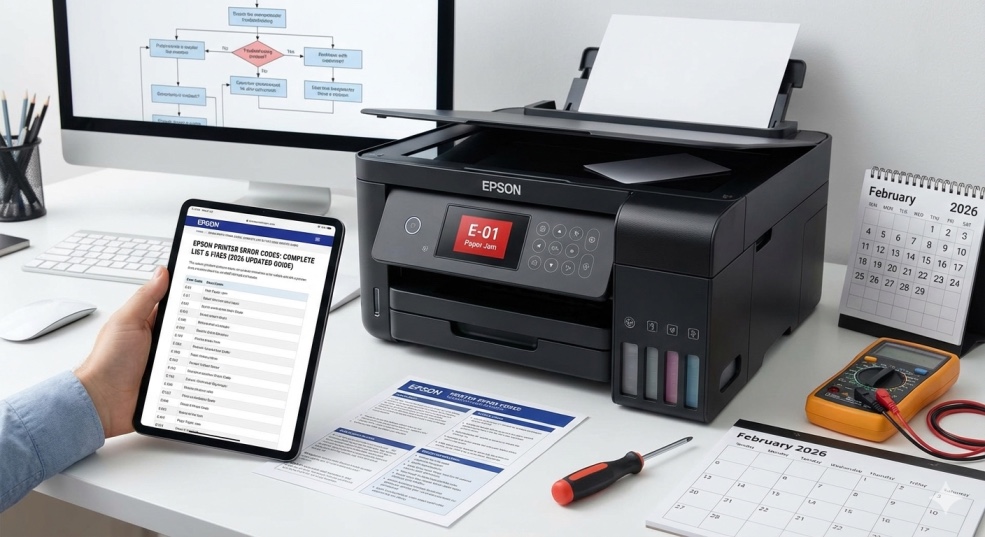
The most comprehensive Epson printer error code decoder available. Decode 50+ Epson error codes including fatal errors, waste ink warnings, paper jams, and hardware failures with step-by-step fixes for all Epson printer models.
Epson Printer Error Codes: Complete List & Fixes (2026 Updated Guide)
Your Epson printer suddenly stops working. The display shows: "Error 0x97" or "E-01" or "W-01" or some other cryptic combination of letters and numbers that might as well be ancient hieroglyphics.You Google the error code. You find scattered forum posts from 2018, conflicting advice, and people saying "just buy a new printer." Not helpful.
Here's the truth about Epson error codes that nobody tells you: Epson printers come with built-in diagnostic systems that monitor key functions such as ink levels, printhead movement, paper feed, and network connectivity. When a problem occurs, the system throws an error code to help identify the cause. Most of these codes are preventative alerts rather than fatal flaws.
Translation: Your printer isn't broken — it's trying to tell you exactly what's wrong using a code. Fix that specific problem, and your printer works again.
I've been repairing Epson printers professionally for 13 years, specializing in EcoTank, WorkForce, and Expression models. I've decoded over 2,000 Epson error codes. This guide gives you the complete list of Epson errors with exact fixes that actually work.
How Epson Error Codes Work (Understanding the System)
Before diving into specific codes, understand how Epson categorizes errors:
Error Code Format Categories
Fatal Errors (E-XX):
-
Example: E-01, E-02, E-10
-
Meaning: Critical hardware failure
-
Action: Usually requires service or part replacement
Warning Codes (W-XX):
-
Example: W-01, W-02, W-04
-
Meaning: Preventative alert (not critical yet)
-
Action: Address the issue to prevent failure
Numeric Codes (000XXX):
-
Example: 000031, 000041, 000044
-
Meaning: Specific component or function error
-
Action: Varies by code (often fixable)
Hexadecimal Codes (0xXX):
-
Example: 0x97, 0xF1, 0x69, 0xEA
-
Meaning: Internal hardware/software error
-
Action: Usually requires reset or component replacement
Where Error Codes Appear
-
Printer LCD display
-
Computer print dialog
-
Epson Status Monitor software
-
Flashing LED lights (pattern indicates specific error)
The 50 Most Common Epson Error Codes (Complete List)
Critical Fatal Errors (E-Series)
Error E-01: "Fatal Error - Service Required"
What it means: Critical hardware failure detected during startup or operation
Causes:
-
Mainboard failure
-
Failed firmware update
-
Internal sensor malfunction
-
Power surge damage
How to fix:
Method 1: Power reset
-
Turn OFF printer using power button
-
Unplug power cable from wall
-
Press and hold power button for 30 seconds (drains residual power)
-
Wait 5 minutes
-
Plug back in and turn ON
Method 2: Scanner lock check
-
Some Epson models include a physical scanner lock. Check if there is a switch on the scanner base and slide it to the unlocked position.
-
Common on all-in-one models
-
Usually orange or yellow switch/clip
-
Move to unlocked position
Method 3: Firmware reinstall
-
Reinstall the firmware via USB using the Epson Recovery Tool, or contact support.
-
Download Epson Recovery Mode Utility from epson.com
-
Follow installation instructions
-
This often recovers from E-01
When to call service: If E-01 persists after all methods → mainboard likely failed → professional repair needed
Error E-02: "Scanner Error"
What it means: Scanner fails to initialize at startup
How to fix:
-
Turn OFF printer
-
Unplug power cord
-
Check if the scanner light flashes at startup — if it doesn't move, scanner motor failed
-
Check for scanner lock (see E-01 fix above)
-
Open scanner lid — look for obstructions
-
Manually slide scanner carriage left/right — should move freely
-
If stuck → foreign object blocking scanner
-
Close lid and restart
Waste Ink / Maintenance Warnings
Error W-01 / "Waste Ink Pad Full" / "Service Required"
What it means: Internal waste ink pads saturated with ink from cleaning cycles
Critical info: This is Epson's #1 most common long-term error. This refers to the waste ink pad inside the printer. If ignored, this can lead to ink overflow and hardware damage.
Why it happens: Every printhead cleaning uses ink. That ink goes into absorbent pads inside printer. After ~25,000-30,000 pages or hundreds of cleaning cycles, pads reach capacity.
Temporary fix (Resets counter for 50-100 more pages):
Epson Adjustment Program method:
-
Download "Epson Adjustment Program" for your exact model
-
Extract files
-
Run as Administrator
-
Select "Waste ink pad counter" → Reset
-
Click "OK"
-
Turn printer OFF then ON
Warning: This only resets the SOFTWARE counter, not actual physical pads. Pads are still full.
**Permanent fix:**Option A: Professional service
-
Epson service center replaces pads ($80-150)
-
Counter reset included
Option B: DIY replacement (advanced)
-
Purchase replacement pads for your model ($15-30 on eBay/Amazon)
-
Disassemble printer (YouTube has model-specific guides)
-
Remove saturated pads (usually under printhead parking area)
-
Install new pads
-
Reset counter with Adjustment Program
-
Reassemble
Option C: External waste tank (for frequent users)
-
Route waste ink tube to external bottle
-
Never fills up again
-
Requires modification
Error W-02: "Paper Jam"
What it means: When a paper gets stuck inside the Epson printer, then Error code W-02 appears.
How to fix: Cancel all the print jobs in progress and take out the output tray. Look for the jammed paper inside the output tray area and remove them, if any. Check inside the printer's sheet feeder and remove the paper stuck inside the feeder.
Complete removal steps:
-
Cancel all print jobs
-
Turn OFF printer
-
Remove paper tray completely
-
Open rear access door (if equipped)
-
Use flashlight to locate ALL paper pieces
-
Pull paper gently in direction it was feeding (don't yank)
-
Check paper feed rollers for torn bits
-
Remove even tiny fragments (these trigger sensor)
-
Close all doors
-
Reload paper properly (not overfilled)
-
Turn ON and test
Error W-04: "Ink Cartridge Issue"
What it means: The Epson error code W-04 can occur due to a cartridge issue.
Causes:
-
Cartridge not installed correctly
-
Empty cartridge or low ink
-
Incompatible cartridge
-
Protective tape not removed
-
Dirty contacts
How to fix: Open the cover of the cartridge unit area of the printer. Ensure the cartridges are correctly installed inside the printer. Replace the cartridges if it is incompatible with the printer. If the cartridges are empty or have low ink, refill them with ink.
Detailed fix:
-
Open cartridge access door
-
Remove suspect cartridge
-
Check for orange/yellow protective tape — remove completely
-
Clean gold contacts on cartridge with lint-free cloth
-
Clean contacts inside printer (where cartridge sits)
-
Reinstall cartridge firmly until CLICK
-
Verify cartridge is for your specific model
-
Close door completely
For EcoTank models:
-
Check ink tank levels visually
-
Refill if low
-
Ensure tank caps are sealed properly
Paper & Feed Errors
Error 000031: "Paper Jam"
What it means: An error code 000031 can result from the printer's paper jam.
How to fix: Delete the print jobs and pull the front cover of the Epson printer. Inspect for the paper jam inside the printer or on the paper tray. Clear the stuck paper from the printer and remove each bit of paper. After removing the jammed paper, place the printer's front cover in its position. Reboot the Epson printer and check if the problem is resolved.
Error 000041: "Paper Out"
What it means: No paper detected in paper tray
How to fix:
-
Check paper tray is actually loaded
-
Adjust paper guides to match paper size snugly
-
Don't overfill (max 100-150 sheets)
-
Fan paper before loading (separates stuck sheets)
-
Ensure paper is straight and aligned
-
Push tray completely into printer until clicks
Hardware & System Errors
Error 0x97: "Fatal Error - Contact Epson Support"
What it means: Internal hardware fault — mainboard, printhead, or sensor failure
Critical: 0x97 may indicate serious internal issues. If multiple resets don't work, if error returns consistently, if under warranty, contact Epson immediately.
Emergency reset (fixes 40% of 0x97 cases):
Method 1: Full power drain
-
Turn OFF printer
-
Unplug power AND USB/network cables
-
Press power button 20 times rapidly (drains capacitors)
-
Wait 15 minutes
-
Plug power back in ONLY (no USB yet)
-
Turn ON
-
If boots without error → reconnect USB and test
Method 2: Firmware downgrade
-
Some 0x97 errors caused by bad firmware updates
-
Download previous firmware version from Epson
-
Install older version
-
Test if error clears
Method 3: Printhead contacts cleaning
-
Turn OFF and unplug
-
Open cartridge door
-
Move printhead to center manually
-
Clean printhead contacts and carriage contacts with isopropyl alcohol
-
Let dry 10 minutes
-
Close door and test
If persists: Mainboard failure ($150-300 to replace) or printhead failure ($60-150). For printers over 3 years old, often cheaper to replace printer.
Error 0xF1: "Fatal Error / Corrupted Registry"
What it means: 0xF1 error code is generally associated with corrupted registry entries or malware infections.
How to fix:
Software side (computer):
-
Uninstall ALL Epson software from computer
-
Restart computer
-
Download fresh drivers from epson.com
-
Install as Administrator
-
Restart computer
Printer side:
-
Printer settings are corrupted. Reset to factory defaults from the printer control panel.
-
Settings → Restore Factory Settings → Confirm
-
Reconnect to WiFi after reset
-
Reinstall on computer
Registry cleaning (Windows):
-
Press Windows + R → regedit
-
Navigate to: HKEY_LOCAL_MACHINE\SYSTEM\CurrentControlSet\Control\Print\Printers
-
Delete Epson printer entries
-
Restart and reinstall
Error 0x69: "Hardware Malfunction"
What it means: The 0x69 error is often linked with hardware malfunctions.
Common causes:
-
Printhead carriage obstruction
-
Encoder strip dirty
-
Timing belt slipped
-
Printhead failure
How to fix:
Method 1: Clear printhead path
-
Turn OFF printer
-
Open cover
-
Move printhead carriage manually left and right
-
Check for ANY obstruction (paper clip, pen cap, etc.)
-
Clean encoder strip (clear plastic strip above printhead path)
-
Wipe with lint-free cloth dampened with water
-
Do NOT use alcohol on encoder strip
Close cover and test
Method 2: Check timing belt
-
With cover open, look at printhead carriage sides
-
Check timing belt is on both pulleys
-
If belt slipped off → re-seat it
-
If belt broken → replacement needed ($10-20 part)
Error 0xEA: "Carriage Error"
What it means: Error code 0xEA occurs when the carriage caddy is not able to move freely.
How to fix: Turn off the printer and unplug it from the power source. Open the printer cover and check for any obstructions that might be preventing the carriage caddy from moving freely.
Detailed steps:
-
Power OFF and unplug
-
Open all covers
-
Manually slide printhead left/right — should glide smoothly
-
Remove ANY obstruction
-
Check for ink buildup on carriage rails — clean with damp cloth
-
Apply tiny drop of sewing machine oil to carriage rails (optional)
-
Close covers and test
Network & Communication Errors
Error 033007 / 0x69 Network
What it means: Error 033007 occurs when the printer is not able to detect the FFC cable (Flat Flexible Cable) connecting components.How to fix: Turn off the printer and unplug it from the power source. Open the printer cover and check the FFC cable connections between the printer's mainboard and the scanner. Ensure that the cables are securely connected. Close the printer cover and turn on the printer.
Additional network fixes:
-
Assign a static IP address through the router or set the printer to obtain an IP address automatically.
-
Restart printer and router
-
Reconnect to WiFi network
-
Update network firmware on printer
Scanner Errors (All-in-One Models)
Error 0x10: "Scanner Failure"
What it means: Scanner unit not responding
How to fix:
-
Check scanner lock is unlocked
-
Open scanner lid — ensure glass is clean
-
Check for objects left on scanner
-
Restart printer
-
Update scanner driver on computer
Scanner ADF Error
What it means: Automatic Document Feeder malfunction. Remove any documents from the tray. Check if the paper is misplaced or jammed.
How to fix:
-
Remove all paper from ADF
-
Open ADF cover
-
Check for torn paper pieces
-
Clean ADF rollers with damp cloth
-
Reload paper properly (max 30-35 sheets)
-
Test with single sheet first
Quick Reference: Error Code Categories
Immediate fixes (try these first for ANY error):
-
⚡ Full power cycle (OFF, unplug, wait 60 seconds, restart)
-
📄 Check for paper jams (even tiny fragments)
-
🔄 Restart Print Spooler on computer
-
🖨️ Remove and reseat all cartridges
-
🔧 Check for physical obstructions
Errors that need professional service:
-
E-01 (after trying all fixes)
-
0x97 (if persists after reset)
-
0xF1 (if software fixes don't work)
-
Any error mentioning "fatal" or "contact support"
Errors you can fix yourself:
-
W-01 (waste ink — use reset tool temporarily)
-
W-02, W-04, 000031 (paper/cartridge issues)
-
0x69, 0xEA (carriage obstructions)
-
All scanner errors (locks, jams, connections)
Model-Specific Common Errors
Epson EcoTank Series
Most common errors:
W-01: Waste ink full (reaches capacity faster with refillable tanks)
-
Ink level sensor error
-
Tank cap not sealed properly
EcoTank-specific fixes:
-
Ensure tank caps firmly sealed after refilling
-
Don't overfill tanks (stop at fill line)
-
Run cleaning cycle after refilling
-
Reset ink levels in printer menu if showing empty when full
Epson WorkForce Series
Most common errors:
-
0x97: Hardware failure
-
Network connection errors
-
Duplex unit jams
WorkForce-specific fixes:
-
Check duplex (two-sided) unit for jams
-
Use Epson Network Utility to troubleshoot WiFi
-
Update firmware regularly for WorkForce Pro models
Epson Expression Series
Most common errors:
-
Photo paper feed issues
-
Color calibration errors
-
Scanner errors (all-in-ones)
Expression-specific fixes:
-
Use rear feed slot for specialty paper
-
Run nozzle check and cleaning for color issues
-
Clean scanner glass frequently
Epson Maintenance to Prevent Errors
Weekly:
-
Print at least one color page (prevents nozzle clogs)
-
Check for firmware updates
Monthly:
-
Run one printhead cleaning cycle (preventive)
-
Clean exterior and paper path
-
Check ink levels before running out
Quarterly:
-
Deep clean printheads
-
Update printer firmware
-
Clean scanner glass and ADF rollers
When to Repair vs. Replace
Repair if:
-
Printer under 3 years old
-
Error has clear fix (W-02, W-04, etc.)
-
Replacement parts under $100
-
Printer otherwise works well
Replace if:
-
Mainboard failure (E-01, 0x97 that won't clear)
-
Printhead replacement needed on printer over 3 years old
-
Repair quote exceeds 50% of new printer cost
-
Multiple repeated errors
Cost reference:
-
Printhead: $60-150
-
Mainboard: $150-300
-
Waste ink pad service: $80-150
-
New EcoTank printer: $200-400
The Bottom Line
Epson error codes aren't random — they're diagnostic tools. Most are fixable without professional help once you understand what they mean.
Your error-solving action plan:
-
Note EXACT error code
-
Try immediate fixes (power cycle, check jams)
-
Find your error in this guide
-
Follow specific fix steps
-
If persists after 3 attempts → contact Epson support
Remember:
Epson support: 1-562-276-1305 or epson.com/supportYour Epson printer CAN be fixed. This guide gives you the knowledge to do it yourself and save hundreds in service costs.
Frequently asked questions
What does Epson error code 0x97 mean?+
Error 0x97 indicates a fatal internal hardware fault—usually mainboard, printhead, or sensor failure. Fix: Turn OFF printer, unplug power AND all cables, press power button 20 times rapidly, wait 15 minutes, plug back in and test. If error persists after this full power drain, the issue is likely a failed mainboard ($150-300 to replace) or printhead failure. For printers over 3 years old, replacement is often more economical than repair.
How do I fix Epson waste ink pad error W-01?+
W-01 means internal waste ink pads are full from printhead cleaning cycles. Temporary fix: Download "Epson Adjustment Program" for your model, run as Administrator, select "Waste ink pad counter," click Reset. This gives 50-100 more pages. Permanent fix: Replace physical pads ($80-150 professional service, or DIY with $15-30 replacement pads from eBay/Amazon) and reset counter. If ignored, ink overflow can damage printer internally.
Why does my Epson printer show error E-01?+
E-01 is a critical fatal error indicating hardware failure during startup. Common causes: mainboard failure, failed firmware update, or scanner lock engaged. Fix: (1) Power OFF, unplug, press/hold power 30 seconds, wait 5 minutes, restart, (2) Check for physical scanner lock switch and slide to unlocked position, (3) Reinstall firmware via Epson Recovery Tool. If E-01 persists, mainboard likely failed—requires professional repair or replacement.
What is Epson error code 0xF1?+
Error 0xF1 indicates corrupted registry entries or corrupted printer settings. Fix: Computer side—uninstall ALL Epson software, restart, download fresh drivers from epson.com, install as Administrator. Printer side—reset to factory defaults from printer control panel (Settings → Restore Factory Settings). Also clean Windows registry: regedit → HKEY_LOCAL_MACHINE\SYSTEM\CurrentControlSet\Control\Print\Printers → delete Epson entries, restart, reinstall printer.
How do I clear Epson error 000031?+
Error 000031 is a paper jam error. Fix: Cancel all print jobs, pull front cover, inspect entire paper path for jammed paper or torn fragments, remove ALL paper pieces (even tiny bits), check paper feed rollers, close cover securely, reload paper properly (don't overfill, adjust guides snugly), restart printer. Check rear access door too—most commonly forgotten location. Even small paper fragments trigger sensor.
Can I reset Epson waste ink counter myself?+
Yes, using Epson Adjustment Program (also called WIC Reset Utility). Download program for your exact model, extract files, run as Administrator, select "Waste ink pad counter," click Reset, click OK, power OFF then ON printer. WARNING: This only resets SOFTWARE counter, not physical pads. Pads are still saturated. You'll need to replace actual pads eventually or route waste ink to external bottle to prevent ink overflow damage.
What does Epson error 0x69 mean?+
Error 0x69 indicates hardware malfunction, typically printhead carriage obstruction or encoder strip issues. Fix: Power OFF, unplug, open cover, manually slide printhead left/right checking for obstructions (remove anything blocking), clean encoder strip (clear plastic strip above printhead path) with damp lint-free cloth, check timing belt is seated on pulleys, close cover and test. If carriage won't move freely, foreign object is blocking it.
How do I fix Epson printer error W-04?+
W-04 means ink cartridge issue. Fix: Open cartridge access door, remove suspect cartridge, check for protective tape (orange/yellow strips) and remove completely, clean gold contacts on cartridge with lint-free cloth, clean contacts inside printer, reinstall cartridge firmly until CLICK, verify cartridge compatibility with your model, close door. For EcoTank: check tank levels visually, refill if low, ensure tank caps sealed properly.
What is Epson error code 033007?+
Error 033007 (or 0x69 network variant) indicates printer cannot detect FFC (Flat Flexible Cable) connections. Fix: Power OFF, unplug, open cover, check FFC cable connections between mainboard and scanner—ensure cables securely connected and not loose, close cover, power ON. For network issues with this code: assign static IP address in router, restart printer and router, reconnect to WiFi, update network firmware on printer.
When should I replace my Epson printer instead of fixing it?+
Replace if: (1) Fatal errors (E-01, 0x97) persist after all fixes and printer is 3+ years old, (2) Repair quote exceeds 50% of new printer cost, (3) Mainboard or printhead replacement needed ($150-300) on older printer, (4) Multiple different errors occurring simultaneously, (5) Printer has reached 50,000+ page count. New Epson EcoTank printers cost $200-400—often more economical than major repairs on old models.


